Documentation Index

Fetch the complete documentation index at: https://v5.rpgjs.dev/llms.txt

Use this file to discover all available pages before exploring further.

Authoritative Sprite Components

Use player components to display reusable UI around a player sprite: name tags, HP/SP bars, status indicators, badges, or custom CanvasEngine components.
Use authoritative sprite components when server gameplay code decides what appears around a player. For client-only visual layers on sprites, use Sprite Components. For interactive menus, dialogs, or widgets, use GUI.
The server is authoritative. It decides which component is displayed and sends a serializable description to every client on the map. The client renders the component and updates dynamic values such as {name}, {hp} or {param.maxHp} when synchronized player properties change.

Display Name Above The Player
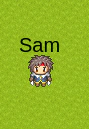
Player name component In your server player file:
import { RpgPlayer, type RpgPlayerHooks, Components } from '@rpgjs/server'

const player: RpgPlayerHooks = {
  onConnected(player: RpgPlayer) {
    player.setHitbox(16, 16)
    player.setGraphic('hero')
    player.name = 'Sam'
    player.setComponentsTop(Components.text('{name}'))
  }
}

export default player
Components.text('{name}') creates a text component. The {name} placeholder is resolved on the client from the synchronized player property.
Prefer placeholders instead of injecting the current value yourself:
player.setComponentsTop(Components.text(player.name))
With {name}, changing the player name only synchronizes the name property. With player.name, the server must send a new component structure every time.

Text Style

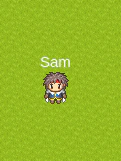
Styled player name component
player.setComponentsTop(Components.text('{name}', {
  fill: '#000000',
  fontSize: 20
}))
Text style supports common CanvasEngine text options such as fill, fontSize, fontFamily, fontStyle, fontWeight, stroke, opacity, wordWrap and align.

Multiple Lines And Columns
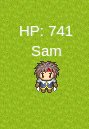
Multiple text components A one-dimensional array is rendered vertically:
player.setComponentsTop([
  Components.text('HP: {hp}'),
  Components.text('{name}')
])
A two-dimensional array is rendered as rows and columns:
player.setComponentsTop([
  [Components.text('{hp}'), Components.text('{name}')]
])

Layout Options

player.setComponentsTop([
  Components.text('HP: {hp}'),
  Components.text('{name}')
], {
  width: 100,
  height: 30,
  marginBottom: 8
})
Layout options configure the block that contains the components:
  • width and height define the layout box.
  • marginBottom moves a top or bottom component away from the sprite.
  • marginRight moves a left component away from the sprite.
  • marginLeft moves a right component away from the sprite.
  • marginTop can be used for additional vertical adjustment.
top, left and right are placed outside the sprite graphic bounds, so they do not cover a graphic that is larger than the hitbox. top is centered on the graphic. bottom uses the hitbox as its positioning rectangle; a 32x32 shape inside a 32x32 hitbox matches the hitbox when centered.

HP And SP Bars
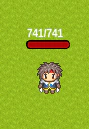
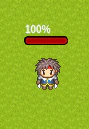
HP bar component
player.setComponentsTop(Components.hpBar(), {
  width: 42
})
Components.hpBar() reads hp and param.maxHp and uses a red fill by default. Components.spBar() reads sp and param.maxSp and uses a blue fill by default. Pass fillColor to override the default color.
player.setComponentsTop(Components.spBar({
  width: 42,
  fillColor: '#60a5fa'
}))

Bar Text

HP bar with text
player.setComponentsTop(
  Components.hpBar({}, '{$percent}%'),
  { width: 42 }
)
The text is displayed above the bar and aligned to the left edge of the bar. It does not move when the current value changes. Bar text can use normal player placeholders and bar-specific placeholders:
  • {$current}: current value
  • {$max}: maximum value
  • {$percent}: percentage without the % sign
Set the text to null to hide it:
player.setComponentsTop(Components.hpBar({}, null))

Other Positions

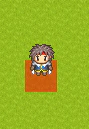
Shape component below the player
player.setComponentsBottom(
  Components.shape({
    type: 'rect',
    width: 32,
    height: 32,
    fill: '#ff0000',
    opacity: 0.5
  }),
  {
    marginBottom: 16
  }
)
Available positions are:
player.setComponentsTop(Components.text('{name}'))
player.setComponentsBottom(Components.hpBar())
player.setComponentsLeft(Components.text('L'))
player.setComponentsRight(Components.text('R'))
player.setComponentsCenter(Components.shape({
  type: 'circle',
  radius: 8,
  fill: '#ffffff'
}))
Use player.removeComponents(position) to remove all components at a position:
player.removeComponents('top')

Custom Player Properties

Any synchronized player property can be used in placeholders.
import { RpgPlayer, type RpgPlayerHooks, Components } from '@rpgjs/server'

declare module '@rpgjs/server' {
  export interface RpgPlayer {
    wood: number
  }
}

const player: RpgPlayerHooks = {
  props: {
    wood: Number
  },
  onConnected(player: RpgPlayer) {
    player.wood = 0
    player.setComponentsTop(Components.text('Wood: {wood}'))
  }
}

export default player
You can also create a bar for a custom value:
player.addParameter('maxWood', {
  start: 100,
  end: 500
})

player.wood = player.param.maxWood

player.setComponentsTop(
  Components.bar('wood', 'param.maxWood', {}, 'Wood: {$current}/{$max}')
)

Custom CanvasEngine Components

Register a reusable CanvasEngine component on the client:
// client.ts
import { defineModule, RpgClient } from '@rpgjs/client'
import GuildBadge from './components/guild-badge.ce'

export default defineModule<RpgClient>({
  sprite: {
    components: {
      guildBadge: GuildBadge
    }
  }
})
Create the component:
<!-- components/guild-badge.ce -->
<Container>
  <Text text={guildName} color={color} size="10" />
</Container>

<script>
  const { guildName, color } = defineProps({
    color: {
      default: '#ffffff'
    }
  })
</script>
Then let the server decide when to display it:
player.setComponentsTop([
  Components.custom('guildBadge', {
    guildName: '{guild.name}',
    color: '{guild.color}'
  })
])
Custom props must be serializable: strings, numbers, booleans, arrays and plain objects. They can contain placeholders, so the component receives updated values when synchronized player properties change.

Graphic IDs And Legacy Tile IDs

player.setGraphic() accepts a spritesheet id, a legacy tile id, or an array mixing both:
player.setGraphic('hero')
player.setGraphic(3)
player.setGraphic(['body', 'shield', 3])
Numeric graphics are kept for compatibility with tile-based projects. Projects without a tile graphic resolver can ignore numeric ids and use spritesheet ids.

Components Or Animations

Use server-driven sprite components for persistent UI controlled by the server: name tags, HP bars, guild badges and status icons. Use componentAnimations and showComponentAnimation() for temporary effects: hit numbers, explosions, spell effects and transitions that remove themselves with onFinish.